Companies Search on Seamless
Learn how to use Seamless’s Companies Search feature to efficiently build targeted account lists for your sales pipeline. This guide walks you through accessing the Companies Search, applying effective filters, creating company profiles, and using advanced search techniques. Gain actionable insights on organizing your search results, customizing layouts, and refining your strategy for optimized prospecting success.
Accessing Companies Search
Navigate to Companies Search through the Search icon on the left icon menu. On the Companies Search page you will be able to start your companies search, and also access your Search History and Saved Searches.
A Guide to Companies Searching
- Locate the Companies Search Filters section. First, set and name your Default List for the found companies to be saved to. Create a new list for your search, or select a previously created list as default for your search.

Pro-Tip
Start by setting or creating a list to help you stay organized with your companies and contacts!
If you are looking for contacts at a specific company, use the Company Filter with a Contacts Search!
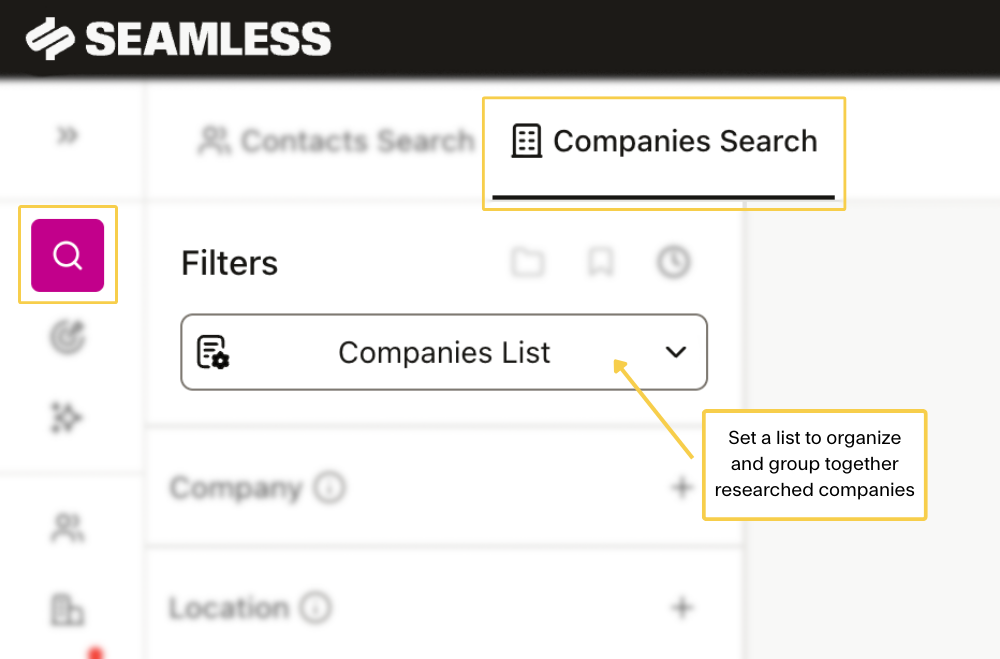
- Add your search criteria for the type of companies you are looking to find, based on related industry, location, or size.
Pro-Tip
When starting out, keep it simple! Apply the filters you know to apply for your target market. You can always tailor your list or apply more filters later!
- Click on the blue Search button to begin creating a list of companies that best match your search criteria. Review the search results and decide if any filters needed to be added or excluded!
- Company profile previews will be displayed on the right hand side. The company preview will display the company’s name, industry, website, location, revenue and employee size . Click Find next to each company you want to research and generate a full profile, including more information about the company and technologies.
Once you click Find, the researched companies will be saved to the My Companies page and set list.
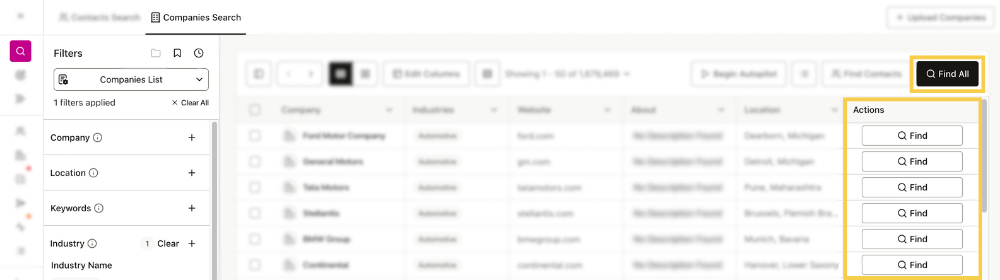
- For an expedited workflow, click Find All to research and generate company profiles for all companies on the page. Click the right arrow to go to the next page while your companies are continuing to research! You do not have to wait for current companies to to finish researching before you click Find All on the next page, they will continue researching as you progress.
- Anytime to click Find or Find All, company profiles will be displayed right on the search page, and also to the My Companies page and list previously set as default. Download, import, or manage your companies directly on the search page, or head back into your My Companies page in Seamless.AI to filter by Total AI and others before downloading/importing!
Finding Contacts at Targeted Companies
After clicking Find or Find All and generating company profiles, find key contacts for each company easily. Simply click the Find Contacts button in the top right corner on the Companies Search Results page or My Companies page. This will pull your targeted companies into a Contacts Search, where you can apply filters to search for key contacts.
.png)
Customize Search Results Display
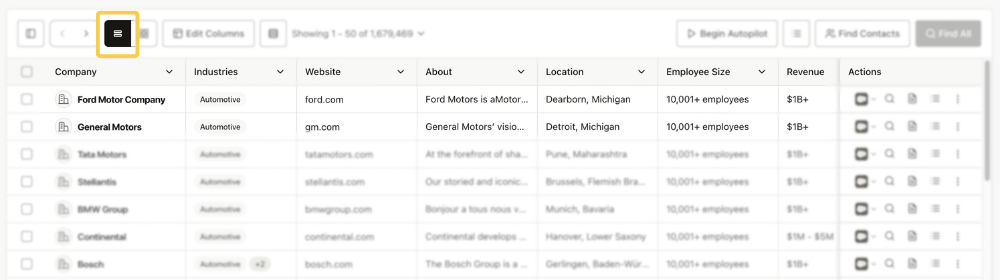
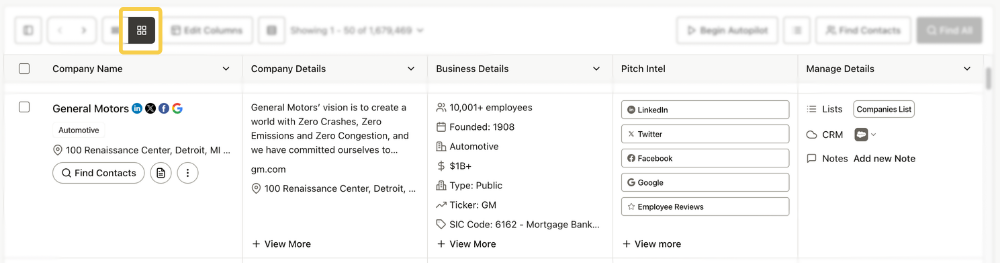
Company information can be displayed based on your user preferences. View and find company profile information in the Table Layout or Card Layout view .Company Profile layouts and customizations include:
- Number of displayed companies - As default, 25 companies are displayed per page, however you can customize your display amounts. Click the results drop down to display, and research, 25 or 50, companies per page.
- Resize the column width - Click and drag the right edge of the column to your preferred width.
- Customize Layout - Further customize the table layout, and select the columns of profile information you want displayed. Simply check column(s) for display, and reorder by holding the six dots on the right hand side and dragging to desired order as needed. When finished, just make sure to save.
Dynamic Table Layout
The Dynamic Table Layout shows company and contact information in a digital table view, with information listed in individual columns. Additionally, users can click the arrow next in the header row to select “Text wrapping” and “Hide the Column” - Click the arrow next in the header row to customize.
Card Layout
The Card Layout will display company information in a more condensed view, rather than information spread across multiple columns.
Tips and Advanced Strategies for Company Searching
Smart Search Tips
Utilize Your Existing Customers: Discover untapped possibilities and broaden your influence by pinpointing the industries, employee sizes, or revenue ranges that align with your most successful customers!
Experiment and Iterate: Try different combinations of filters and iterate on your strategy based on the outcomes. Continuously refine your approach for optimal results.
Consider Exclusion Filters: Use exclusion filters to eliminate results that do not meet certain criteria. This helps in focusing on leads that align closely with your requirements.
Financial Health: Assess the company's financial health, including revenue figures and recent funding rounds. A financially stable company is often more receptive to partnerships or purchasing new solutions.
Advanced Search Techniques
Negative Filters: Exclude specific criteria from your search to further refine and tailor your results.
Location Filter: Specify the geographical location of your target audience, allowing for more localized and personalized outreach.
Funding Filter: Target companies based on recent funding rounds and amounts.
Keyword Filter: Use specific keywords to fine-tune your search and identify contacts with particular niches or interests.
Technology Filter: Identify leads based on the technologies and tools used by their companies, enabling targeted outreach.
Industry Filter: Narrow down your search by selecting specific industries relevant to your target audience.
Employee Size Filter: Tailor your search based on the size of the companies, helping you focus on businesses that align with your preferences.
Best Practices for Success
Define Your Ideal Criteria: Clearly outline the criteria that define your ideal company. This may include industry, company size, revenue range, and other relevant factors.
Leverage Pitch Intel: Users can harness the power of Seamless's Pitch Intel to gather detailed information, identify key decision-makers, and streamline your outreach for more effective engagement with target companies.
Segment Lists for Targeted Outreach: If your target audience is diverse, consider segmenting your prospecting lists based on different criteria. This allows you to tailor your outreach strategies for more effective engagement.
Customize Outreach: Tailor your outreach based on the insights gathered. Customize your messaging to address specific pain points, challenges, or goals identified.
Save and Manage Profiles: Save relevant company profiles for easy access. This feature streamlines your workflow and ensures consistency.