
Seamless API Overview
Learn how to use the Seamless API to search, enrich, and sync contact and company data across your CRM, automation platforms, and internal systems.
What Is the Seamless API?
The Seamless API gives your team programmatic access to Seamless contact and company data without requiring users to complete every action through the Seamless application.
With the API, you can:
- Search for contacts and companies using criteria such as job title, seniority, industry, company size, revenue, technology, and location
- Research and enrich incomplete contact or company records
- Retrieve verified contact and company information
- Sync Seamless data into your CRM or internal systems
- Automate prospecting, enrichment, lead routing, and data-management workflows
- Connect Seamless with platforms such as Salesforce, HubSpot, Clay, n8n, and other supported systems
The API is ideal for teams that want to scale and customize how Seamless data is used across their sales, marketing, and RevOps workflows.
For endpoint requirements and technical documentation, visit: https://docs.seamless.ai/
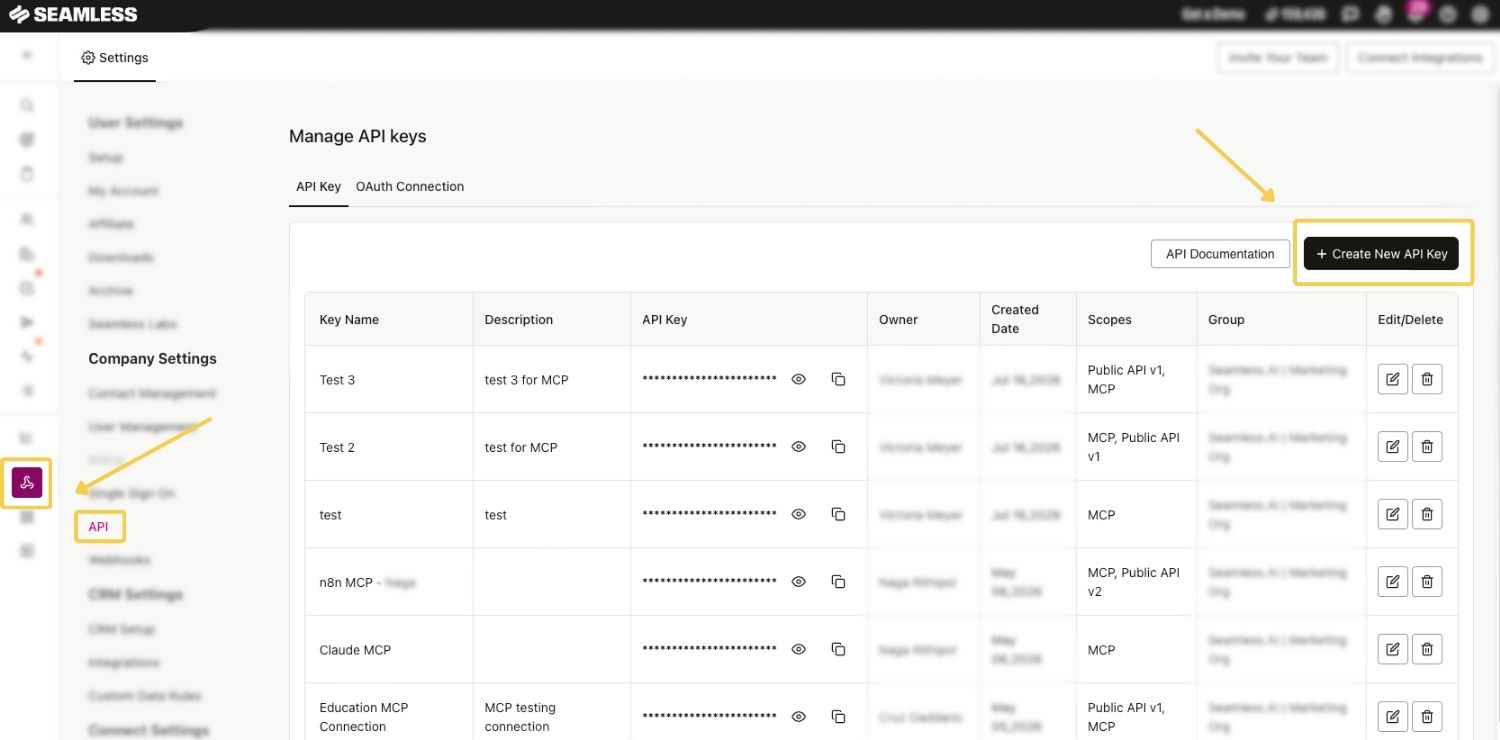
How to Create an API Key
To create a new API key:
- Open the API page, through the Integrations icon on the left side.
- Select Create New API Key.
- Choose API Key as the connection type.
- Enter a recognizable name for the key.
- Add a description explaining where and how the key will be used.
- Select the appropriate scope or scopes.
- Select an available user, group, or organization assignment, when applicable.
- Save the connection.
- View or copy the key.
- Add the key to the approved application or integration.
Use a name that clearly identifies the destination or workflow.
Examples include:
- Salesforce Contact Enrichment
- HubSpot Data Sync
- n8n Contact Research
- CRM Data Refresh
- Internal Reporting Workflow
- Custom ChatGPT MCP Connection
A clear name and description make the connection easier to identify, audit, and manage later.
Selecting an API Key Scope
Available scopes may include:
- Public API: Used for supported API search, research, enrichment, and automation workflows
- MCP: Used for custom MCP clients, applications, or AI-agent workflows that require an API key.
- Public API and MCP: Used when the same approved connection requires both types of access
Direct MCP integrations configured through the Seamless MCP dashboard generally use Seamless sign-in and do not require a manually created API key.
Only select the scopes required by the integration.
Assigning an API Key
Depending on your permissions and organization settings, a key may be assigned to:
- The individual user creating the connection
- A specific group of Seamless users
- The broader Seamless organization
Select the narrowest assignment that supports the intended workflow.
Managing an Existing Key
After a key is created, return to the API dashboard to manage the connection.
Depending on your permissions, available actions may include:
- Viewing connection details
- Copying the key
- Editing the name or description
- Reviewing its scopes
- Reviewing its assignment
- Managing or deactivating the connection
This section applies to API-key-based connections. Direct MCP integrations are viewed and managed from the MCP page under Settings.
Regularly review active connections and deactivate keys that are no longer needed.
Common API Use Cases
CRM Enrichment: Fill in missing contact and company information to improve CRM completeness, segmentation, scoring, and routing.
Web Form Enrichment: Enrich new form submissions so leads can be qualified, routed, and followed up with more quickly.
Campaign Segmentation: Build targeted lists using job title, seniority, industry, company size, revenue, technology, and location.
Buying Committee Expansion: Identify additional stakeholders at target accounts to support multithreaded outreach.
Data Refresh and Job Changes: Update stale CRM records and identify contacts who may have changed roles or companies.
Lead Routing: Use researched contact and company information to determine the correct territory, representative, team, or workflow.
Automation Workflows: Use tools such as n8n, Clay, Salesforce, HubSpot, or internal systems to automate repeatable prospecting and enrichment processes.
Connection Options
Seamless supports multiple connection and authentication methods.
Persistent API Keys
Persistent API Keys provide long-lived authentication for applications and automated workflows.
They are recommended for many standard API use cases because they:
- Provide a direct connection to supported Seamless capabilities
- Do not require refresh tokens
- Are easy to create and manage
- Support Public API and MCP scopes
- Work well with CRMs, automation platforms, internal systems, and custom MCP or AI tools that require API-key authentication
OAuth Connections
OAuth provides user-authorized access and uses tokens to maintain the connection.
OAuth may be preferred when an integration requires:
- User-specific authorization
- Token expiration and refresh functionality
- Greater control over the authorization lifecycle
- An application that connects on behalf of multiple Seamless users
Setup requirements may vary based on the OAuth connection being created.
Partner Connections
Partner Connections are used for supported or approved partner integrations.
Configuration requirements may vary by partner. Follow the instructions displayed during setup and review any documentation provided for the applicable integration.
Webhooks
Webhooks are used with supported research workflows to send completed results to another system automatically.
Webhooks can help:
- Deliver completed research results
- Trigger downstream automations
- Update CRM or database records
- Reduce the need to repeatedly check whether research has finished
Users can create a maximum of 3 webhooks per account.
These connection methods may be used individually or together based on the needs of your workflow.
MCP Connections and the MCP Dashboard
Seamless includes a dedicated MCP dashboard for connecting supported AI tools and managing existing MCP integrations.
To access it:
- Open Settings.
- Select MCP.
From the MCP dashboard, users can:
- Copy the Seamless MCP server address
- View supported AI tools
- Access platform-specific setup instructions
- Connect tools such as ChatGPT, Claude, Cursor, and Perplexity
- View and manage existing MCP connections
- Copy sample prompts
- Access additional MCP documentation
Most directly supported tools will ask the user to sign in to Seamless and approve the connection. When direct Seamless authentication is supported, an API key is not required.
A custom MCP API key should only be created through the API page when the connected tool or application cannot use direct Seamless authentication or specifically requires an API key.
For complete setup instructions, available actions, example prompts, and troubleshooting guidance, review the Seamless MCP Integration article.
Public API vs. MCP
Public API and MCP provide access to Seamless capabilities in different ways.
Public API
The Public API is intended for teams building direct integrations, custom applications, and automated data workflows.
It is commonly used to:
- Search for contacts and companies programmatically
- Enrich CRM or database records
- Sync Seamless data with other systems
- Build workflows in tools such as n8n, Clay, Salesforce, or HubSpot
Public API integrations typically require a developer, RevOps professional, or technically experienced operations team member.
MCP
MCP, or Model Context Protocol, allows supported AI tools and agents to interact with Seamless through natural-language requests.
MCP may be appropriate when users want an AI tool to complete supported Seamless actions, such as:
- Searching for contacts and companies
- Researching or enriching records
- Building and saving prospect lists
- Identifying job changes
- Reviewing campaign activity
- Supporting outbound workflows
Supported direct integrations are connected and managed from the MCP dashboard under Settings. These connections typically use Seamless sign-in and do not require a manually created API key.
For custom tools or applications that cannot use direct Seamless authentication, create an API key from the API page and select the MCP scope.
For detailed setup instructions, supported capabilities, example prompts, and MCP-specific troubleshooting, review the Seamless MCP Integration article.
API Access and User Permissions
API access and connection visibility depend on your organization’s plan, user role, permissions, and assigned access.
Individual Users
Users with the appropriate access can generally:
- Create and manage their own API connections
- View connections assigned or made available to them
- Copy and manage their own API keys
- Review the name, description, scope, and assignment of their connections
Users cannot view or manage another user’s private API keys.
Owners and Authorized Admins
Owners and Authorized Admins may have broader organization-level capabilities, including:
- Creating organization-level connections
- Viewing connections created across the organization
- Managing or deactivating connections
- Assigning connections to specific groups
- Making connections available to the organization
Available controls may vary based on the organization’s configuration.
Key Ownership and Credit Usage
Universal Credit usage is tied to the owner of the API key.
When an individual user creates a key, eligible activity completed through that key is associated with that user.
Consider who should own the key before using it for a shared or organization-wide integration.
Accessing the API Page
Users with the appropriate access can create and manage connections from the API page in Seamless.
To access the API page:
- Select API from the left-hand navigation.
- Alternatively, open Settings and navigate to the API section.
The API dashboard displays the connections available to the current user based on their role and permissions.
From the dashboard, users may be able to:
- View existing connections
- Copy an API key
- Review connection details
- Edit or manage a connection
- Review assigned scopes
- Create additional connections
Credit Usage
The Seamless API uses Universal Credits.
Credits are consumed based on the action being performed.
- Contact research: 1 Universal Credit per contact researched
- Company research: 1 Universal Credit per company researched
- Search: 1 Universal Credit per 10 returned results
Search usage rounds up. For example:
- A search returning 1–10 results uses 1 Universal Credit.
- A search returning 11–20 results uses 2 Universal Credits.
- A search returning 21–30 results uses 3 Universal Credits.
Avoiding Duplicate Research Charges
Supported research endpoints include a deduplication option that can help prevent the same contact or company from being researched more than once.
When deduplication is enabled, Seamless checks whether the applicable user has already researched the submitted records.
For example, if six contacts are submitted and three have already been researched, Seamless researches only the three new contacts.
Use deduplication when you want to reduce unnecessary duplicate research and credit usage.
Rate and Connection Limits
API Rate Limit
The standard Seamless API rate limit is: 60 requests per minute
For higher-volume workflows:
- Process records in controlled batches
- Add delays between requests
- Avoid unnecessary duplicate requests
- Use retry logic for temporary rate-limit responses
- Monitor workflows for loops or repeated executions
Connection Limits
An organization may support up to:
- 25 active Persistent API Keys
- 25 active OAuth connections
These are active connection limits, not API request limits.
Key API Capabilities
Search Contacts and Companies
Programmatically search for contacts and companies that match your target criteria.
Search criteria may include:
- Job title
- Seniority
- Department
- Company name or domain
- Employee size
- Revenue
- Industry
- Technology
- Contact or company location
Research and Enrich Records
Submit available contact or company information and receive additional researched data.
This can help teams:
- Complete missing CRM records
- Verify contact information
- Improve segmentation
- Support lead scoring
- Refresh outdated records
- Prepare prospects for outreach
Sync Data
Automatically deliver searched or enriched data into systems such as:
- Salesforce
- HubSpot
- Marketing automation platforms
- Data warehouses
- Internal databases
- Custom applications
- RevOps workflows
Trigger Downstream Actions
Use webhooks or automation platforms to trigger follow-up actions after research is completed.
Examples include:
- Updating a CRM record
- Assigning a lead
- Creating a task
- Adding a contact to a campaign
- Notifying a sales representative
- Sending data into another workflow
What Data Can Be Returned?
Available data depends on the endpoint, submitted information, and account access.
Contact Data
Contact fields may include:
- Full name
- Job title
- Department
- Seniority
- Primary and alternate emails
- Email validation information
- Direct-dial or mobile phone numbers
- Location information
Company Data
Company fields may include:
- Company name
- Website and domain
- Employee size
- Revenue
- Industry
- SIC or NAICS codes
- Headquarters location
- Technologies
- Founded date
Additional endpoint-specific metadata and CRM identifiers may also be returned.
Review the developer documentation for the exact fields supported by each endpoint.
How to Get Started
Before building an API integration, define what you want Seamless to do, where the data should go, and who will manage the workflow. This helps your team choose the right connection type, estimate credit usage, and avoid unnecessary development work.
Step 1: Define the Workflow
Start by identifying the business process you want to automate.
Common workflows include:
- Searching for new contacts or companies that match your ideal customer profile
- Enriching incomplete records already stored in your CRM
- Refreshing outdated contact or company data
- Identifying contacts who changed roles or companies
- Sending researched data into Salesforce, HubSpot, a database, or another system
- Triggering a follow-up action after research is complete
For example, your workflow might be:
When a new lead submits a form, use Seamless to enrich the contact and company record, then send the completed data to Salesforce for routing.
Once the workflow is defined, identify:
- What information will be sent to Seamless
- What contact or company data should be returned
- Which Seamless endpoint supports the workflow
- Where the results should be delivered
- What should happen after the results are received
Review the developer documentation to confirm the endpoint requirements and supported fields.
Step 2: Choose the Connection Type
Select the connection method that matches how your system will access Seamless.
- Persistent API Key: Recommended for many direct integrations, internal systems, and automation platforms. Persistent keys provide long-lived access and do not require refresh tokens.
- OAuth: Best for applications that require individual users to authorize access or that connect on behalf of multiple Seamless users.
- Partner Connection: Used for supported or approved partner integrations.
- Webhook: Used to automatically deliver completed research results to another system.
- Direct MCP Connection: Used for supported AI tools that connect through the Seamless MCP dashboard and direct Seamless sign-in.
When connecting a supported AI tool, first open Settings > MCP and follow the instructions provided for that platform.
Create an API key with the MCP scope only when the AI tool or custom application requires API-key authentication.
When creating an API key, also select the appropriate scope:
- Public API for direct API integrations and automated workflows
- MCP for custom MCP tools and agent workflows that require an API key
- Both scopes when the same approved connection requires both
Your developer, RevOps, or technical operations team should confirm which connection type is appropriate before implementation begins.
Step 3: Build and Test the Integration
Build the workflow using the requirements for the selected endpoint and connection method.
Begin with a small number of test records rather than launching the full workflow immediately.
During testing, confirm that:
- The connection authenticates successfully
- The correct endpoint is being used
- The request contains all required fields
- Field names and values follow the documented format
- Search filters return the expected contacts or companies
- Research results include the expected data
- Results are delivered to the correct system or webhook URL
- Universal Credit usage matches the expected activity
- The workflow remains within the API rate limit
Testing with a small sample makes it easier to identify formatting, authentication, routing, or credit-usage issues before they affect a larger volume of records.
Step 4: Launch and Monitor the Workflow
After testing is complete, gradually increase the number of records processed by the integration.
Monitor the workflow regularly for:
- Failed or rate-limited requests
- Unexpected or incomplete results
- Duplicate search or research activity
- Universal Credit consumption
- Repeated workflow executions
- Delays in webhook delivery
- Incorrect or missing updates in the destination system
Continue reviewing the integration after launch, especially when changing filters, fields, endpoints, or workflow frequency.
Regular monitoring helps ensure the integration remains accurate, efficient, and within your organization’s credit and rate limits.
API Key Security
API keys should be treated like passwords.
Follow these security practices:
- Only enter keys into trusted and approved systems.
- Do not share keys in public channels or unsecured messages.
- Do not include keys in screenshots, training videos, or support documentation.
- Do not store keys in public code repositories.
- Use environment variables or secure secrets-management tools when available.
- Create separate keys for separate systems when practical.
- Only enable the scopes required by the integration.
- Deactivate and replace a key if you believe it has been exposed.
Tips for Success
- Start small: Focus on one automation or enrichment use case first
- Test your integration with a small data sample before scaling
- Regularly audit and validate enriched fields in your CRM
- Collaborate with your internal RevOps or development teams for best results
Learn more about Seamless API Terms here: Seamless API Terms Glossary
Common Troubleshooting Steps
The API Page Is Not Visible
Confirm that:
- Your organization includes API access
- You are logged into the correct Seamless organization
- You have the required role or permissions
- The applicable access or license has been assigned
Contact an Owner, Authorized Admin, or Seamless Support if access should be available but the API page is not visible.
Authentication Is Failing
Confirm that:
- The API key is active
- The complete key was copied correctly
- No extra spaces or characters were added
- The correct authentication method is being used
- The key owner still has the required access
- The required Public API scope is enabled
- Authentication is being sent in the documented format
Search Results Do Not Match Expectations
Review:
- The endpoint being used
- The request body
- Exact field names
- Required fields
- Field and array formatting
- Location settings
- Valid documented values
- Filters that may be too broad or restrictive
Some fields may require an exact documented value. Invalid optional values may be ignored instead of causing the entire request to fail.
Research Results Are Incomplete
Confirm that:
- Enough identifying information was submitted
- The correct research endpoint was used
- Required fields were included
- The research request completed successfully
- The workflow is retrieving or receiving completed results
- Sufficient information is available for the submitted record
Credit Usage Is Higher Than Expected
Review:
- Whether the workflow is performing search, research, or both
- The number of records returned
- Search usage credit rounding
- Whether duplicate records are being researched
- Whether deduplication is enabled
- Whether the workflow is running repeatedly
- Which user owns the API key
The Workflow Is Being Rate Limited
Confirm that the workflow does not exceed 60 requests per minute.
Consider:
- Reducing request frequency
- Processing smaller batches
- Adding delays
- Implementing retry logic
- Preventing multiple workflow executions from running simultaneously
Webhook Results Are Not Arriving
Confirm that:
- The delivery URL is correct
- The receiving endpoint is active
- The destination accepts the request method and payload
- Required authentication is configured
- The research request completed
- The destination system is not rejecting the request
Frequently Asked Questions
How do I access the Seamless API? - API access depends on your organization’s plan, user role, permissions, and assigned access. Contact your Seamless Owner, Authorized Admin, or Seamless Support if you believe access should be available.
Where do I create an API key? - Open the API page from the left-hand navigation or through Settings.
Can individual users create API keys? - Yes. Users with the appropriate access can create and manage their own API connections. Owners and Authorized Admins may have broader visibility and management capabilities across the organization.
What is the difference between Public API and MCP? The Public API is designed for direct integrations using documented endpoints and structured requests. MCP allows supported AI tools and agents to use Seamless actions through natural-language prompts.
Supported direct MCP integrations are connected through the MCP dashboard. Custom MCP tools may require an API key with the MCP scope.
Can one API key include both Public API and MCP access? - Yes. Both scopes may be selected when the same approved custom integration requires them. Direct MCP connections that use Seamless sign-in do not require an API key.
Does the API use Universal Credits? - Yes. Applicable search, research, and enrichment actions use Universal Credits. Search Credits cannot be used for these API actions.
Why did a search returning fewer than 10 results use one credit? - Search usage rounds up. A search returning between one and ten results uses one Universal Credit.
How can I avoid researching the same record twice? - Enable deduplication on supported research requests. Seamless will check whether the applicable user has already researched the submitted contact or company.
What is the standard API rate limit? - The standard API rate limit is 60 requests per minute.
Do I need a developer to use the API? - Direct API integrations typically require a developer, RevOps professional, or technically experienced operations team member to configure and maintain the workflow.
Can I use the API to enrich my CRM? - Yes. The API can be used to search for new records and enrich existing contact or company records.
Can I use the Seamless API with n8n? - Yes. Seamless can connect with n8n using API keys and supported HTTP requests.
What should I do if an API key is exposed? - Deactivate the exposed key, create a replacement, and update the connected application. Review recent activity and contact Seamless Support if you suspect unauthorized usage.
Support
Need help getting started or troubleshooting?
Contact Support and include the endpoint, request body, response body, error message, timestamp, and API key owner or OAuth user email.
For additional technical documentation, visit: https://docs.seamless.ai/
The Seamless API brings your CRM to life—automating enrichment, discovery, and syncing to keep your data fresh, complete, and ready to drive results.
