
Contact and Company Flyout Profiles
The flyout profile provides streamlined access to contact and company information. This feature enhances usability by consolidating details in a side panel, making it easier to manage leads, personalize your workflow, and integrate with CRM systems efficiently
The Seamless Profile Flyout makes it easy to view and manage contacts and companies by displaying essential details on the right-hand side of the screen. When you click on a contact’s or company’s name, their profile opens, providing quick access to key information, including emails, phone numbers, company details, and management options.
Accessing the Profile Flyout
- Click on a researched contact’s name or a company’s name anywhere in Seamless.
- The Profile Flyout appears on the right-hand side of the screen.
- This flyout remains open until manually closed and is fully customizable.
Understanding the Contact Profile
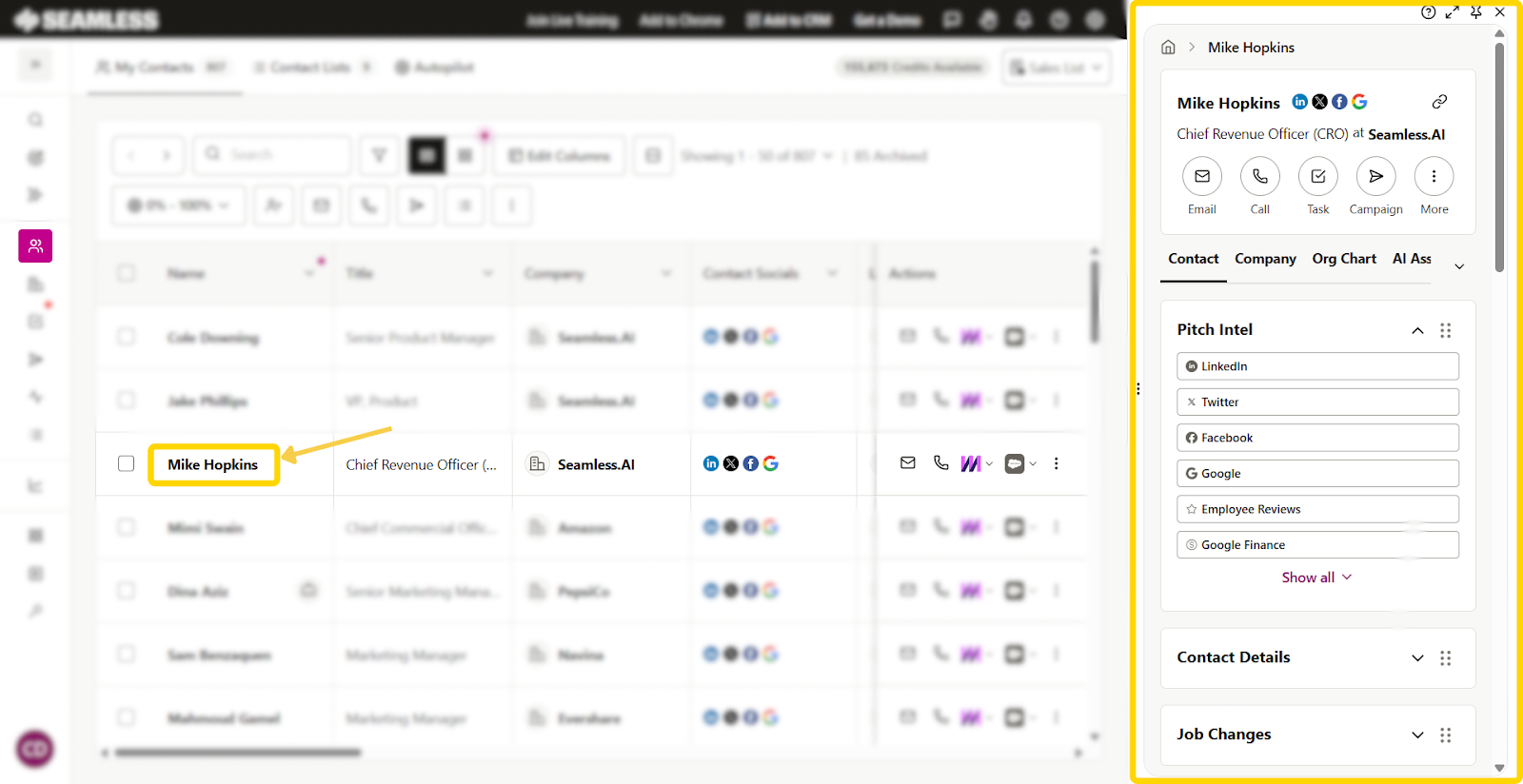
Each contact profile includes key details and multiple tabs for deeper insights:
1. Contact Details (Top Section)
The top section of the profile flyout shows a brief introduction to contact name, title, and company. Additionally, the contact’s social links, and a direct profile link to share with teammates.
Easy access action buttons are available as well. Engage with the contact through Email or Call with Connect in one quick click. Additionally, users can create Tasks for a specifc contact or add them directly to a campaign. More actions are available through the 3 dots icon, including adding to list, importing to a CRM, downloading, archiving, or deleting contacts.
2. Contact Profile Tabs
- Contact: Shows emails, phone numbers, work history, education, and engagement notes.
- Company: Displays company size, revenue, website, technologies used, and buyer intent data (if enabled).
- Email: Lists verified company and contact emails with AI confidence scores.
- Phone: Shows office and mobile numbers.
- Domain: Provides website and email domain detail
- Org Chart: Displays other contacts at the company by department or seniority levels.
- Tasks: Shows all tasks associated with the contact and can be filtered to view To-Do or Completed tasks.
- Activity: Displays completed activity for the contact and can be filtered to view email and call activity.
- Notes: Allows adding and reviewing engagement notes.
- AI Assistant: (Premium feature) Generates customized outreach messages and prompts.
Phone Numbers
Contact Phone (Direct Dial)
A direct phone number associated with the individual contact.
- Typically a desk line or direct work number
- Connects you straight to the contact without going through a main line
- Ideal for personalized, one-to-one outreach
Contact Mobile
A mobile phone number tied directly to the contact.
- Contact or work-issued mobile number
- Often provides a more immediate way to reach the contact
- Commonly used for call or SMS-based outreach strategies
Company Phone
A general phone number for the company or office.
- Not specific to an individual contact
- Usually routes through a main line, receptionist, or phone directory
- Best used when direct contact information is unavailable
Primary Phone
The default phone number surfaced by Seamless as the “best available” option.
- Automatically selected based on availability and data confidence
- May be a direct dial, mobile, or company number
- Designed to streamline outreach by highlighting the most relevant number
Understanding the Company Profile
Clicking on a company’s name will open its profile in the flyout, showing company-wide data.
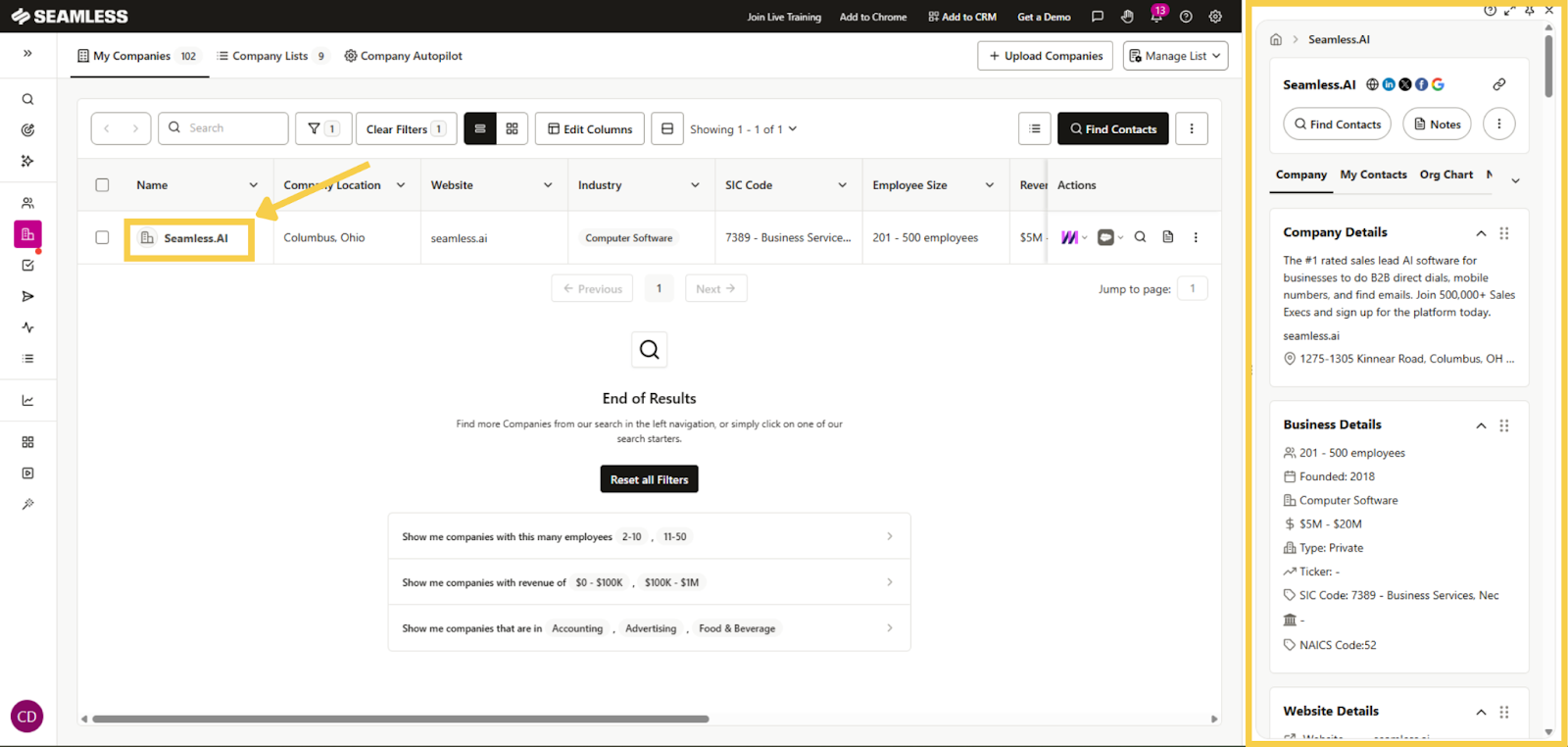
1. Company Details (Top Section)
- Displays company name, website link, and social media accounts.
- Includes options to find contacts, leave notes, import into CRM, download data, or archive the company.
2. Company Profile Tabs
- Company: Lists business details, website analytics, technologies used, and buyer intent data (if enabled).
- My Contacts: Shows saved contacts at that company, with additional filtering and import options.
- Org Chart: Helps find and filter contacts based on seniority and department.
- Notes: Displays any saved notes related to the company or its contacts, while also allowing you to create new notes!
Customizing the Flyout
As you navigate through contacts and companies through the profile flyout, your digital footprint will be displayed at the top. Clicking on a previous profile or viewed page, will bring your right back to the information!
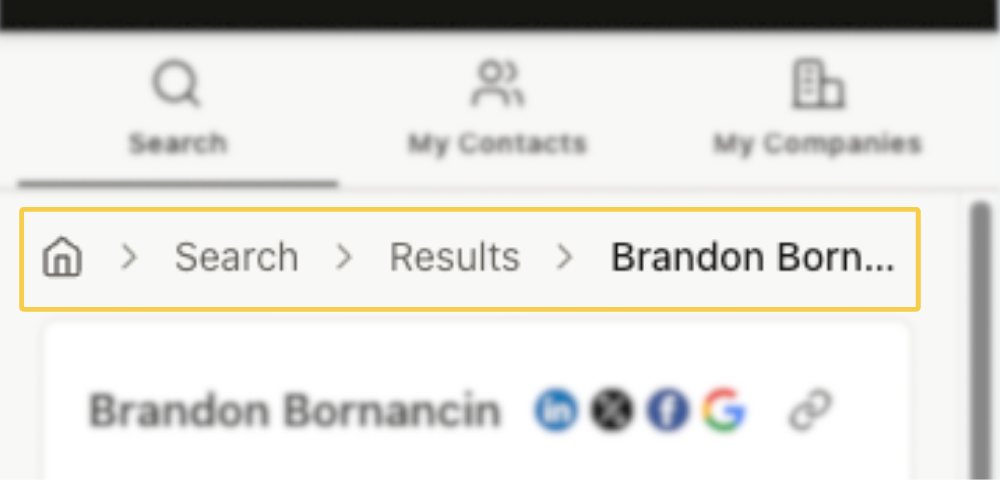
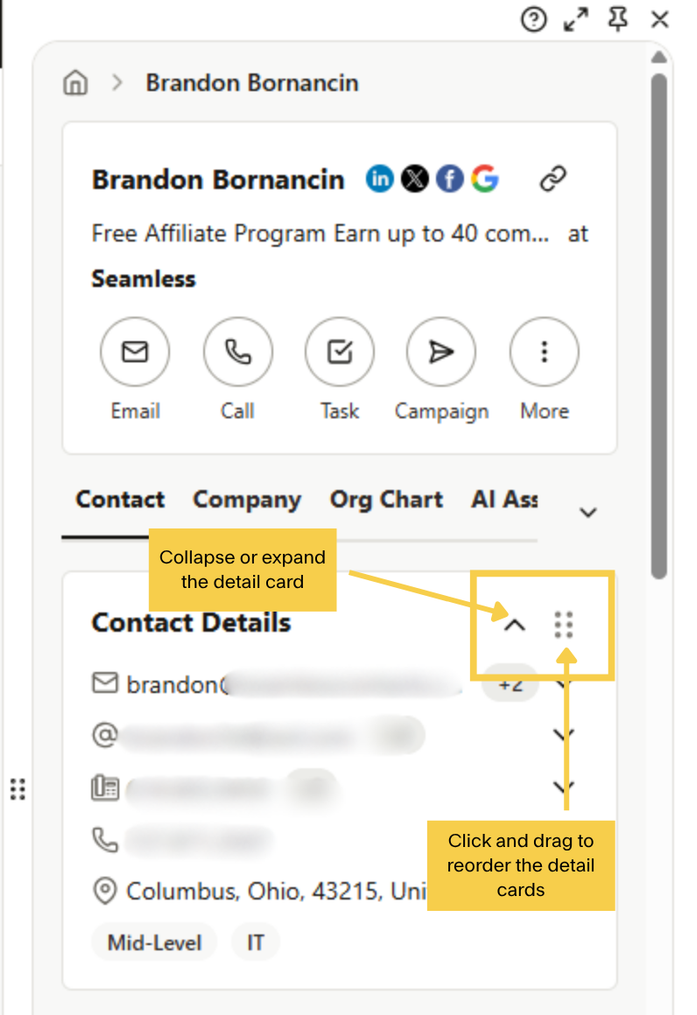
The Profile Flyout can be adjusted to fit your workflow:
- Drag and reorder sections using the six-dot icon. Move the card in an order best for your workflow and viewing priority
- Expand or collapse sections to highlight key details, and only display the information you want.
- Resize the flyout to occupy more or less screen space.
- Close the flyout by clicking the “X” in the top right corner.
Best Practices for Efficient Use
- Use lists and notes to track important contacts and company insights.
- Leverage the Org Chart to discover additional key decision-makers.
- Connect contacts and companies directly to your CRM for streamlined prospecting.
- Enable buyer intent data (if available) for insights into high-interest leads.
By mastering the Profile Flyout, you can streamline your prospecting, access essential data faster, and manage your leads with ease.
