
Using Dynamic Variables
This article introduces Dynamic Variables, a feature an essential tool for personalizing outreach at scale. Learn how to automate contact, company, and user-specific details into your email and call templates to boost engagement without manual edits. You'll also discover how to configure your “About Me” variables for self-referencing personalization, and see a full list of available dynamic fields to tailor messages with precision and efficiency.
Personalized outreach is key to engaging prospects, and Dynamic Variables make it easier than ever. With Seamless Connect, users can automatically insert relevant details into their email and call templates, ensuring each message is customized without manual effort.
What Are Dynamic Variables?
Dynamic Variables allow users to automatically pull contact, company, and user-specific information into their templates. Instead of manually updating names, job titles, or company details for each message, Dynamic Variables adjust in real time as users navigate from one contact to another.
Where can you use Dynamic Variables?
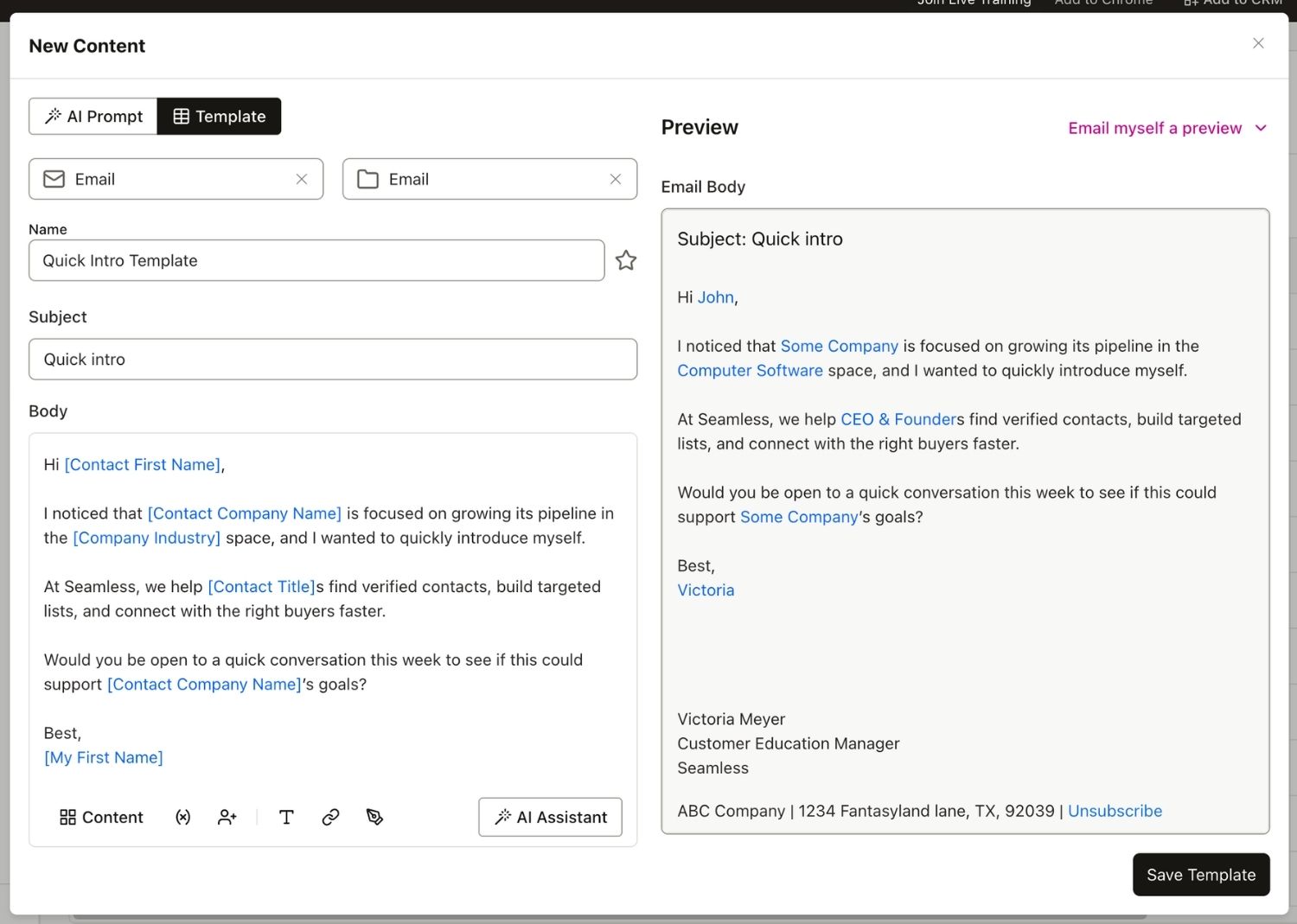
Dynamic Variables are available within the email and call template modals. They ensure that every outreach message adapts based on the contact being reached, saving time while maintaining a personalized touch. Users can add dynamic variables directly within the call or email module by typing “[” to choose from available fields like first name, company, or job title.
Setting Up Your “About Me” Information
In addition to contact and company data, users can personalize their templates with their own information using About Me Variables. To complete this section:
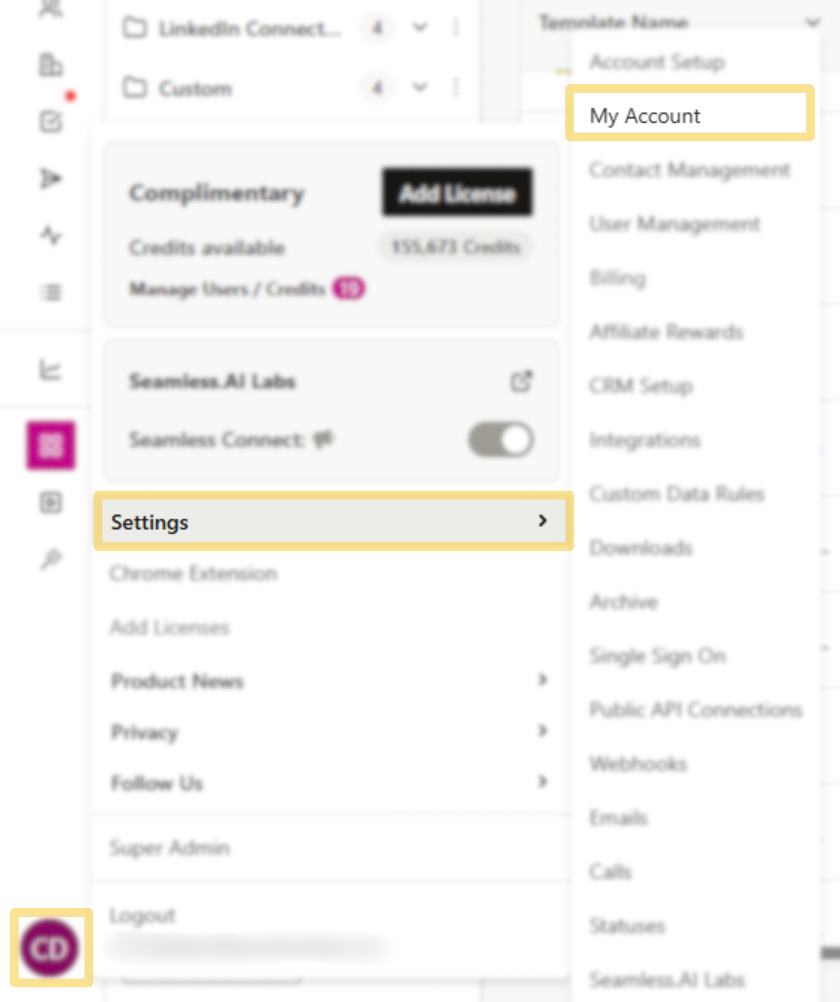
- Click on your initials in the bottom left corner of Seamless.AI.
- Select Settings, then go to My Account.
- If you’re already in your settings, find My Account under User Settings.
You ensure that any templates using About Me Variables dynamically populate with the correct information.
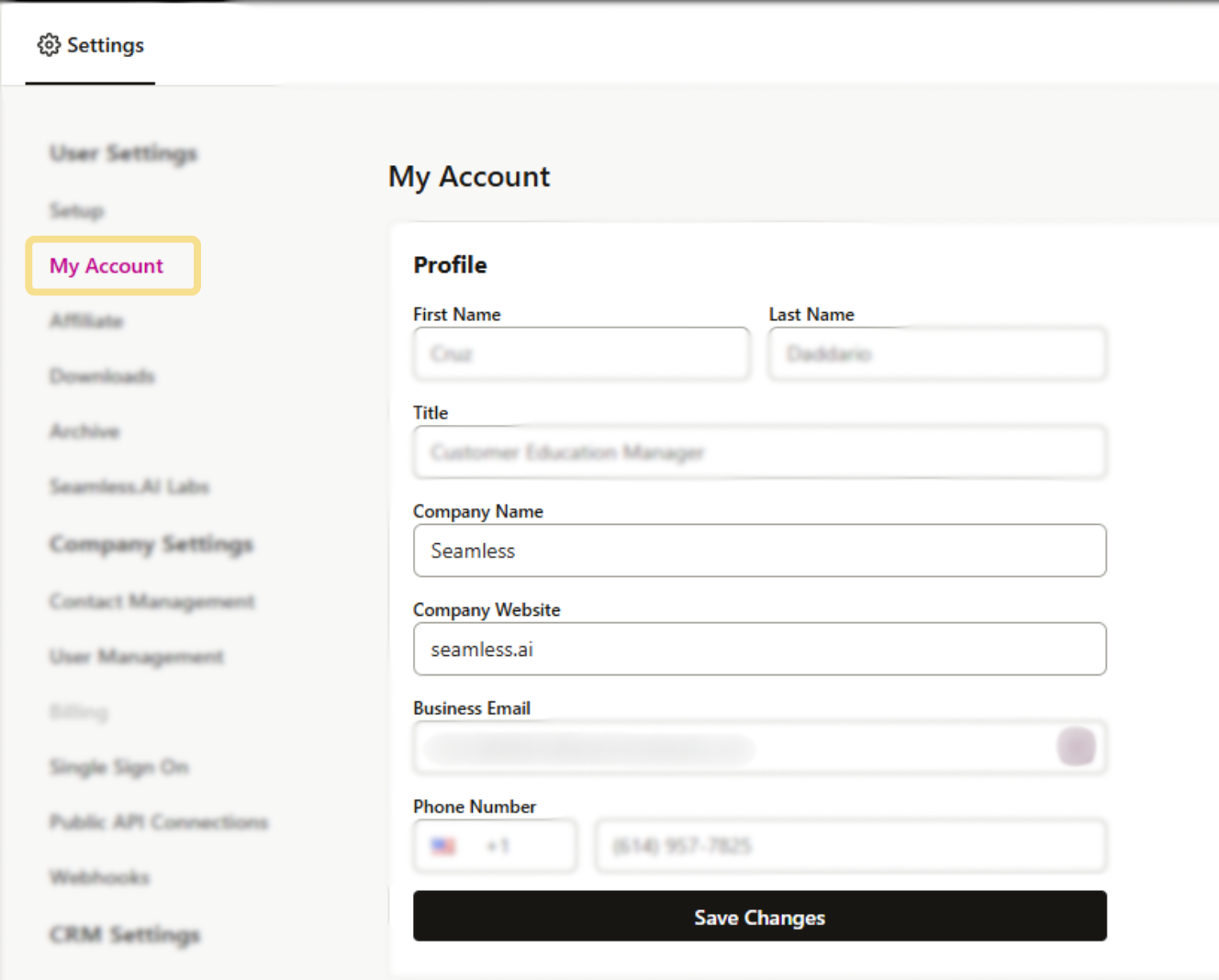
Within the My Account Settings, you can set profile information that will be used to populate Dynamic Variables about yourself.
Using Dynamic Variables in Templates
When creating or editing a template, users can insert Dynamic Variables to personalize each message. These variables adapt as users move between contacts, making outreach efficient.
- Keep templates generic so they automatically adjust for each contact.
- Select a contact to see how the variables populate in the preview panel before sending.
With these options, users can confidently create templates that are both automated and tailored to each recipient.
Available Dynamic Variables
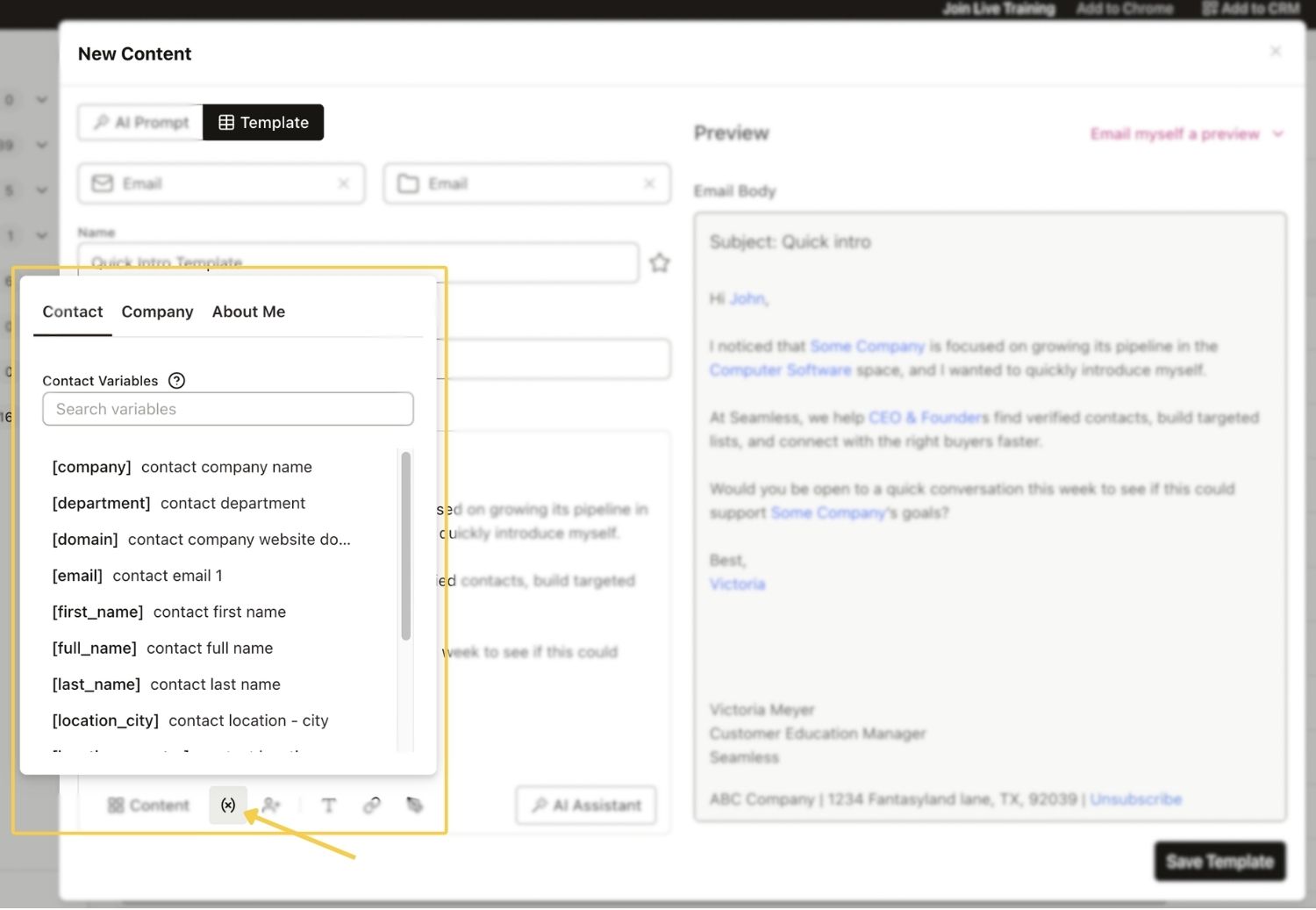
Below is a full list of Dynamic Variables users can insert into their templates.
Contact Variables
- Company – Contact’s company name
- Department – Contact’s department
- Domain – Contact’s company website domain
- Email – Contact’s primary email
- First Name – Contact’s first name
- Full Name – Contact’s full name
- Last Name – Contact’s last name
- Location City – Contact’s city
- Location Country – Contact’s country
- Location State – Contact’s state
- Phone – Contact’s phone number
- Seniority – Contact’s seniority level
- Title – Contact’s job title
Company Variables
- Company – Company name
- Company City – Company’s city
- Company Country – Company’s country
- Company Phone – Company’s primary phone number
- Company Size – Number of employees at the company
- Company State – Company’s state
- Founded – Year the company was founded
- Industry – Company’s industry category
- Revenue – Company’s annual revenue
- Website – Company website
About Me Variables
- My Company – Your company name
- My First Name – Your first name
- My Full Name – Your full name
- My Job Title – Your job title
- My Last Name – Your last name
- My LinkedIn – Your LinkedIn profile link
- My Website – Your company website
- Dynamic Current Year – Current Year
- Dynamic Day of Week – Day of the Week
- Dynamic Next Year – Next Year
