Use Bulk Upload Filters in Seamless
Learn how to use bulk upload filters in Seamless to add companies, titles, and full names to your search faster. This article covers supported upload limits, bulk company workflows in Company and Contact Search, and best practices.
Bulk upload filters help you search faster in Seamless by letting you add multiple values at once instead of entering them one by one. This is especially useful when you already have a target list and want to quickly narrow your search results.
Depending on your workflow, you can use bulk upload to:
- upload companies for company research or contact search
- upload multiple titles to narrow a contact search
- upload full names to search for specific people
This article covers the bulk upload filters supported in Seamless, where to use them, and best practices for cleaner search workflows.
Bulk Upload Filters Supported in Contact Search
Seamless supports bulk upload for the following search filters:
- Company — up to 1,000 values
- Title — up to 100 values
- Full Name — up to 100 values
- Past Company — up to 1,000 values
These filters help you build targeted searches faster when you already know the accounts, roles, or people you want to research.
Choose the Right Workflow
Use bulk upload based on what you are trying to accomplish:
- Use My Companies or Company Search when you want to upload and save company records in bulk.
- Use Contact Search when you want to upload companies, titles, or names and then find matching contacts.
Bulk Upload Requirements
Before uploading, keep these requirements in mind:
- You can upload up to 1,000 companies or past companies at a time
- You can upload up to 100 titles at a time
- You can upload up to 100 full names at a time
- If you are uploading a CSV where supported, your headers must match the expected format
- CSV format templates are available in Data Enrich to provide accurate headers
Bulk Upload Filters in Contacts Search or Companies Search
Use this workflow when you want to upload companies, titles, or full names into Contacts Search and then apply additional filters to narrow your results.
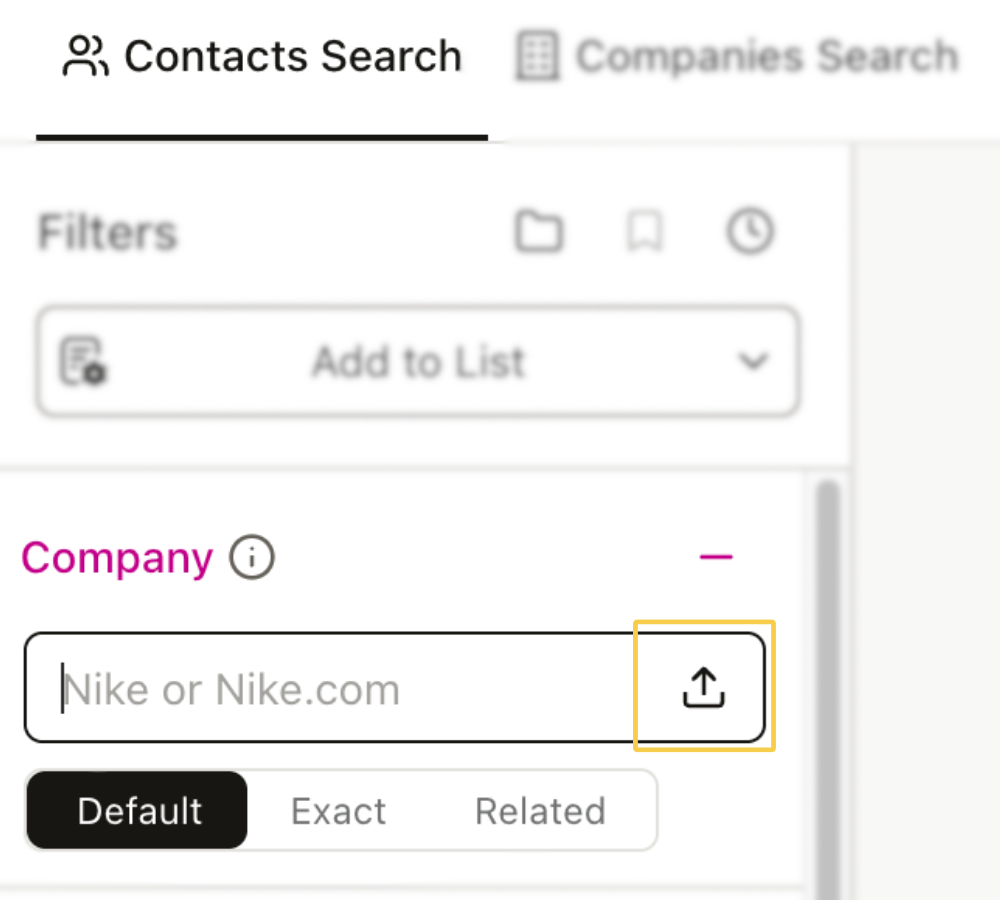
- Go to Contact Search.
- Open the bulk upload option, the icon with the box and arrow up, for the filter you want to use.
- Follow the prompts to upload your entries as a list or your CSV file.
- Apply any additional contact filters needed for your search.
- Click Search to view matching contacts.
- Click Find on the contacts you want to research and save.
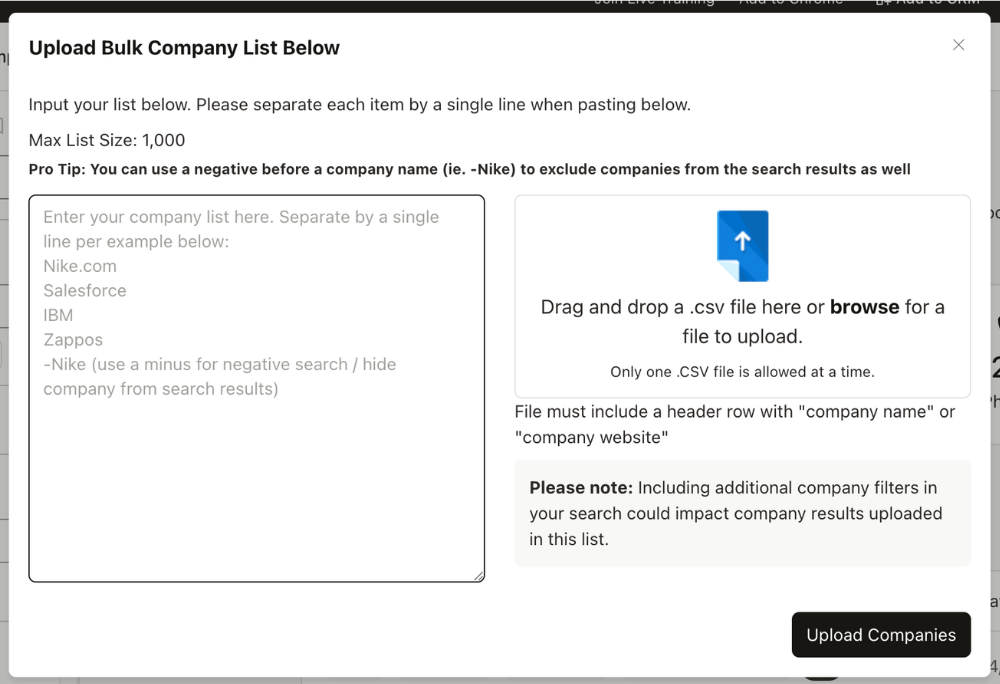
Company and Past Company Bulk Upload in Contact Search
Use this when you want to find contacts at a target list of accounts.
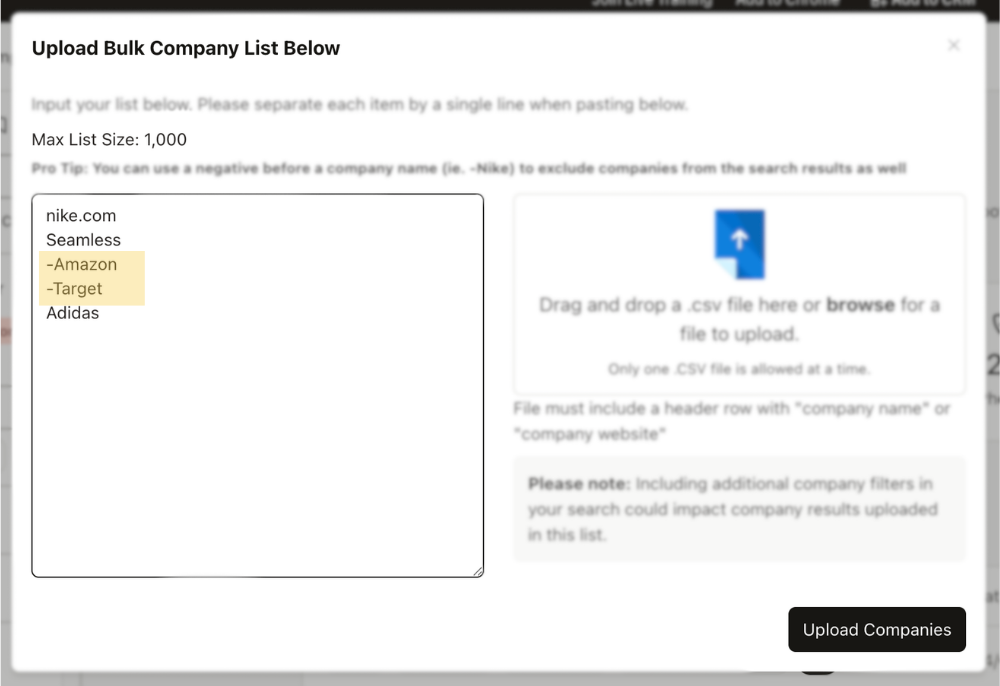
- Add up to 1,000 company names or domains
- Enter one value per line
- Once applied, the company filter will be tagged as bulk upload
- Any previously applied company filters may be ignored once the bulk upload list is in use
Title Bulk Upload in Contact Search
Use this when you want to search across multiple target job titles at once.
Examples might include - VP Sales, Head of Revenue, or Director of Marketing
This is helpful when you want to search across several related personas without entering each title one by one.
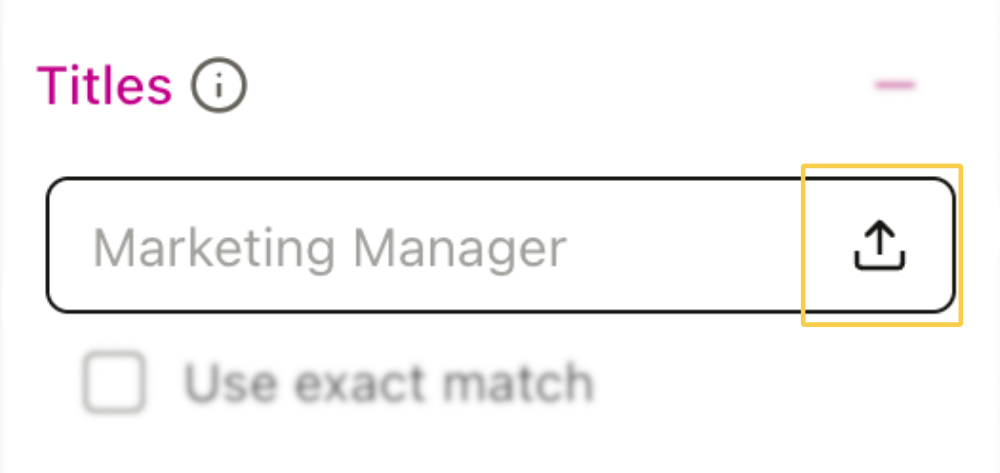
Full Name Bulk Upload in Contact Search
Use this when you already know the exact people you want to search for.
This is best for targeted workflows where you have a predefined list of contacts and want to research them quickly inside Seamless.
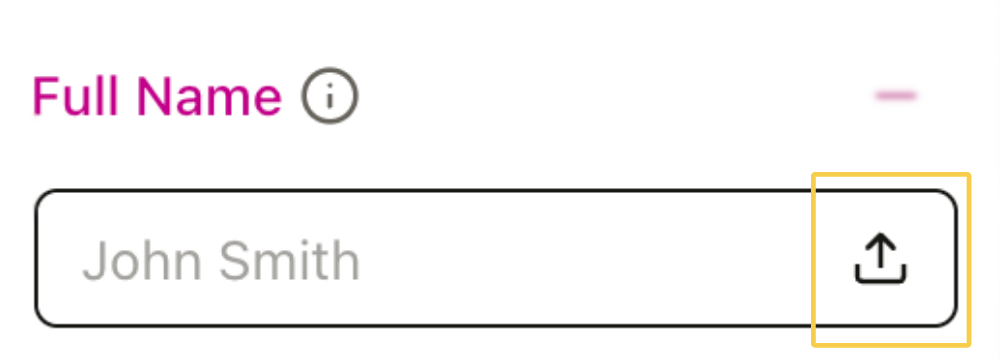
Bulk Upload in My Companies or Companies Search
Use this workflow when you want to import a list of companies to research and save in Seamless.


- Navigate to My Companies or Companies Search.
- Click + Upload Companies.
- Follow the prompts to upload your CSV file.
- Download the sample CSV if you need help confirming formatting.
- Name your list so you can easily filter for it later.
- Click Upload List.
- Wait for the in-app notification confirming the upload is complete.
- To view your uploaded companies, use the List filter and select the list name you assigned during upload.

CSV Upload Tips
Where CSV upload is supported, review your file before uploading.
Best practices:
- use the exact required headers
- keep formatting clean and consistent
- remove extra spaces or unnecessary punctuation
- use the sample CSV whenever available
Negative Search Criteria
Bulk upload filters for Title and Company may support negative search criteria.
To exclude a value, add a minus sign before the entry. For example, -Manager or -Acme
This is useful when you want to remove unwanted companies or titles from a broader search.
Best Practices
To get the best results from bulk upload filters:
- start with a clean list
- use bulk upload when you already have a target set in mind
- layer additional filters after upload to narrow results
- work in focused batches instead of overly broad searches
- name saved lists clearly so they are easy to find later